Shells and trays
A solid 20 mm cube costs about twice the filament of the same cube with a 2 mm wall, and the same cube with its top left open is a tray. The Shell card in the shape inspector does both: it hollows the selected shape to a wall of the thickness you give, and leaves any faces you choose open.
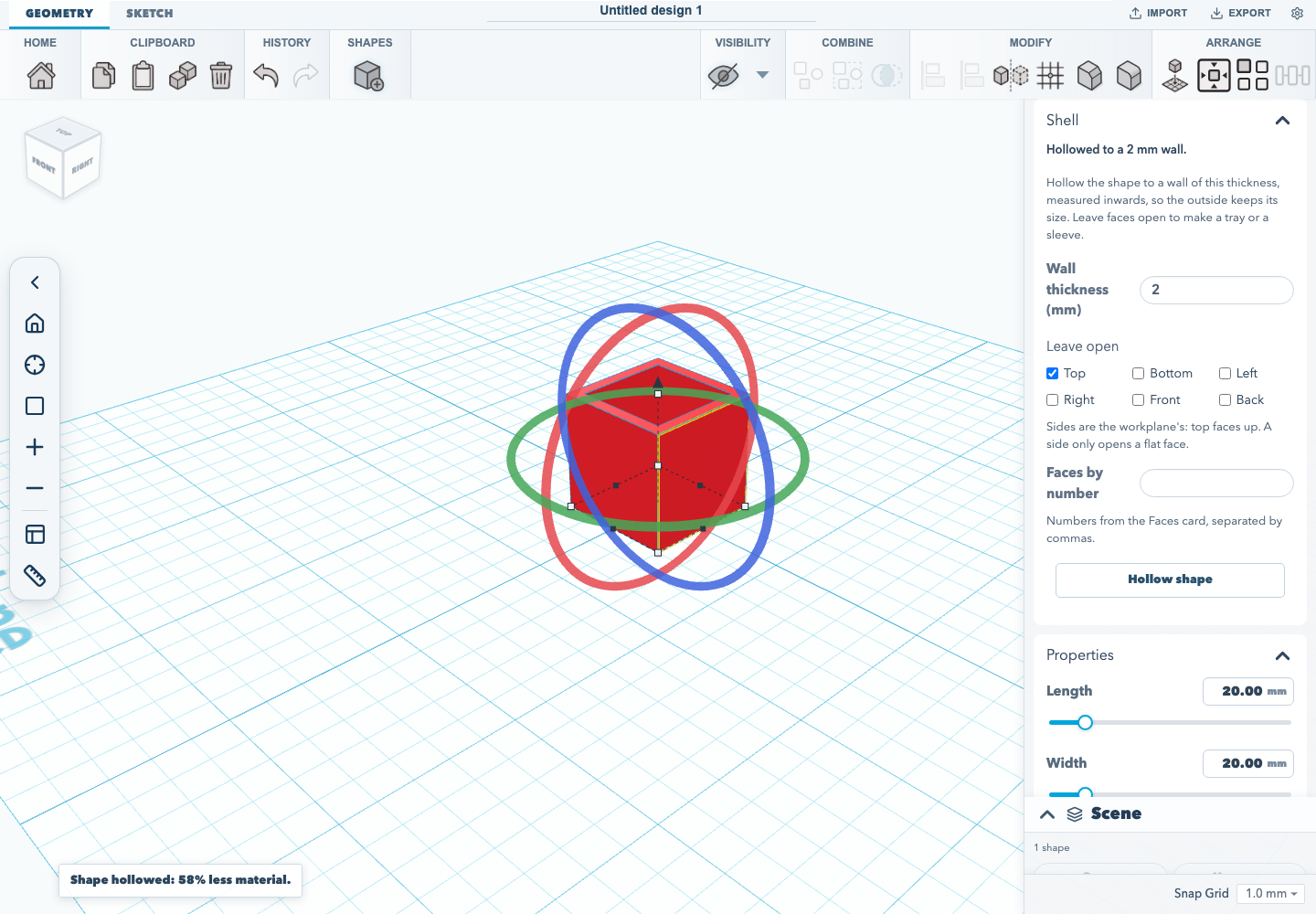
Hollow a shape
- Select one shape and open the Shell card in the inspector.
- Type the Wall thickness, in the workspace's length unit. The wall is measured inwards, so the shape keeps its outside size.
- Under Leave open, tick the sides to leave off: Top, Bottom, Left, Right, Front or Back. Leave them all unticked for a sealed hollow, a wall all the way round with the void closed in.
- Press Hollow shape.
The notice says how much material went. The shape keeps its place and size, and stores the exact solid alongside its mesh, the same as a fillet. A hollowed part still exports to STEP as true surfaces. After hollowing, the card shows the wall the shape was hollowed to.
Sides are the workplane's: Top faces up and Front faces the viewer, as in the view cube. A side means the outermost flat face pointing that way, so on a part that is already hollow, Top opens the lid, not the floor of the cavity. A shape with no flat face on that side, such as a sphere, a torus or a pointed cone, is refused rather than opening the wrong face. It can still be hollowed sealed.
Choose faces by number
A face no side describes, such as one wall of a hexagonal pot, can be named by number. When the shape has exact faces (it was filleted, drafted or imported from STEP, or Enable face editing was pressed in the Faces card), the Shell card adds Faces by number. Type the face numbers the Faces card shows, separated by commas. To pick a face, open the Faces card and click the face in the view. The Shell card then offers Add picked face with its number. Sides and numbers can be mixed.
A shape's faces change when it is hollowed, so its face numbers change too. Pick again before naming faces on a hollowed shape.
What it refuses
Every refusal leaves the shape as it was, and says why in a notice:
| Notice | When |
|---|---|
| The wall is too thick | Hollowing at that thickness leaves no cavity. Try a thinner wall. |
| Every face open | Leaving every face open would take the walls away rather than hollow anything. |
| No flat face on that side | The shape has no flat face pointing that way to leave open. |
| Surfaces cannot be offset | The skin is a spline, not an analytic surface: a ball with unequal radii, a pointed cone, a tube, ring, round roof or loft. Cut a cavity with a hole shape instead. |
| More than one closed surface | The shape is already a sealed hollow, or its mesh has an internal void or separate bodies. Shell it before sealing, or shell each body on its own. |
| Fillet, chamfer or draft | The shape carries an edge treatment or draft. Undo it, hollow the shape, then treat it again. |
| Cannot be hollowed exactly | The shape has no exact surfaces to offset: text, a gear, an icosahedron, a mirrored primitive, a group of loose parts, or a plain imported mesh. |
These are the same refusals the REST API gives for POST /shell. The editor runs the same shell code in its CAD worker, so a part hollowed in the browser and over the API come out the same.
Undo, saving and sketches
- Undo and redo: hollowing is one undoable step. Undo puts the solid back with its faces, face colours and face IDs; redo hollows it again.
- Saving: the hollowed solid, its mesh and a record of the shell (wall thickness and open faces) are saved in the project and in
.skffiles, and come back when the project is opened. - Face colours: hollowing makes new faces with new face IDs, so face colours on the shape are cleared.
- Sketches: nothing can replay a shell on a rebuilt solid. Finishing an edit to the sketch of a hollowed extrusion, sweep or revolve is refused, and the sketch stays open to cancel. Undo the shell first to edit the sketch.
- Groups: a group of loose parts cannot be hollowed. Hollow its parts one at a time. Hole shapes do not show the card.
Verified workflow
tests/browser/shell-tray.test.mjs adds a box, gives it a material so the inspector shows its volume, and checks that a wall as thick as the box is refused with a notice and leaves the volume alone. It then hollows the box to a 2 mm wall with Top open and checks the volume dropped to exactly the tray's (20³ − 16 × 16 × 18 mm³), with the outside size unchanged. It undoes and redoes the shell, saves the project as .skf, opens it again and checks the tray and its shell record came back. The size readouts cannot tell a hollow from a solid, so the test measures volume.
tests/unit/editorShell.test.ts hollows shapes the way the editor's CAD worker does and checks each result by volume and centre of mass. A tray's weight sits lower than a sealed hollow's, and a shape away from the origin is hollowed where it stands. It also covers the localized refusals, the request the inspector sends, and the shell record through a .skf save and load.
Documentation version: 1.30.0 · Repository revision: 1cb9fee8dff4d394684c229dd67a21da539d167f · View source